


The same anime, on the screen across the room.
Tsuzuku TV and the Tsuzuku phone app are made to work as one: the same list and progress on both, episodes sent from your phone to the TV with the phone as the remote, and your phone as the chat when friends watch with you.
tsuzuku to be continued
Made to work with your phone

One app on two screens, not two apps.
Tsuzuku TV is built alongside the phone app, from the same parts: the same sources, the same list, the same progress, the same watch parties. Whatever you do on one is already on the other.
Connect in three steps
1. Put the phone and the TV on the same Wi-Fi, with Tsuzuku on the phone and
Tsuzuku TV on the TV.
2. On the phone, tap the TV button at the top of Home.
3. Point the phone at the code on the TV. That’s it: your list and progress
come over, and the TV remembers your phone for next time.
Then pick on the phone, watch on the TV
Open any episode on the phone and it plays on the TV. The phone becomes the remote: play, pause, seek, change the server or the speed. Put the phone down and the TV carries on to the next episode by itself.
Signing the TV in to your account
In the phone app, open your picture on Home, then TV › Sign in to a TV and scan the code: the TV gets your account and stays in step on its own, even with the phone switched off. Or point your phone’s camera at the code on the TV and Tsuzuku opens to do it.
No phone app? Still fine
The TV also shows a code for any phone’s browser, or a short address for a computer, to sign in with MyAnimeList or a Tsuzuku account. Everything stays in step with the phone app the day you install it.
Watching
Made for a remote, from Home to the last episode.
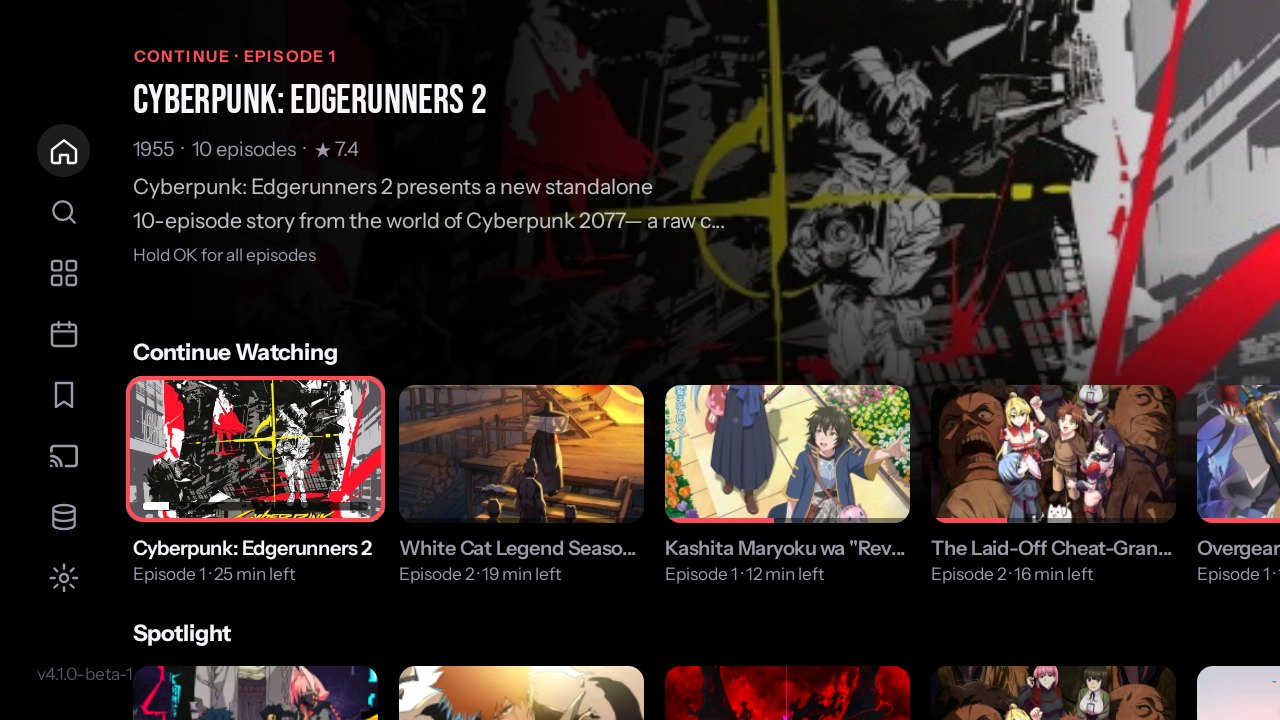
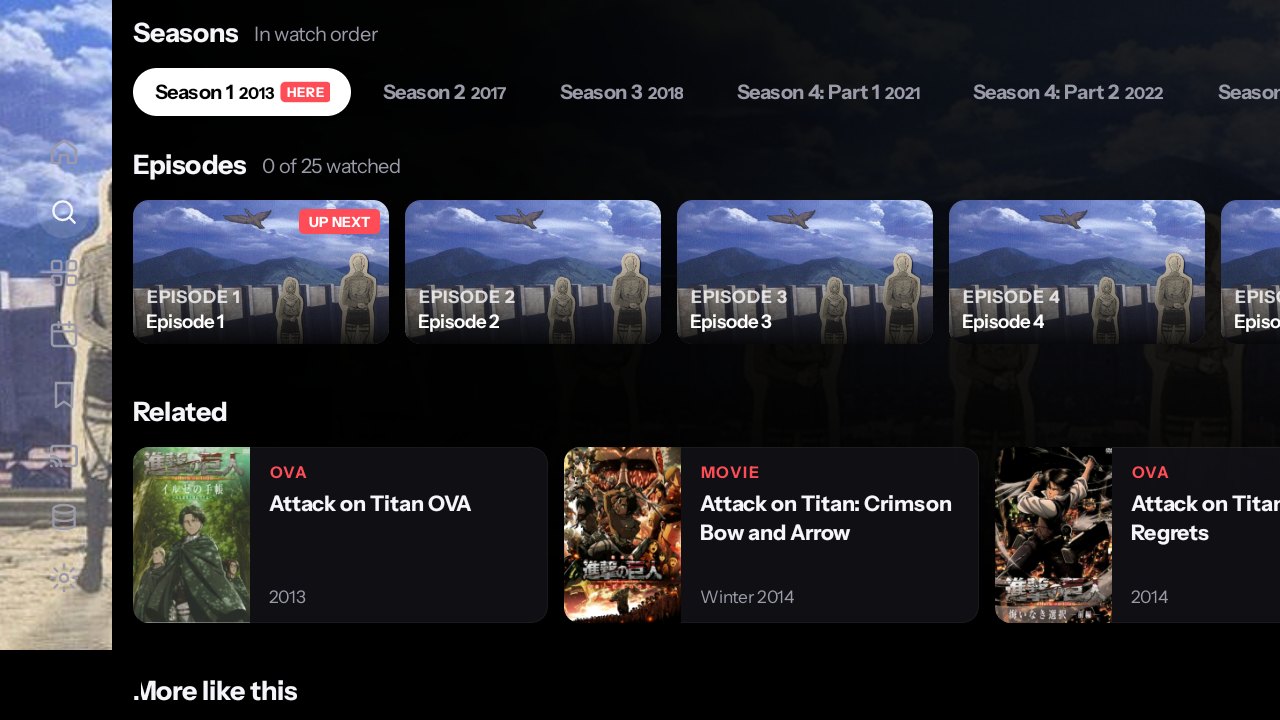
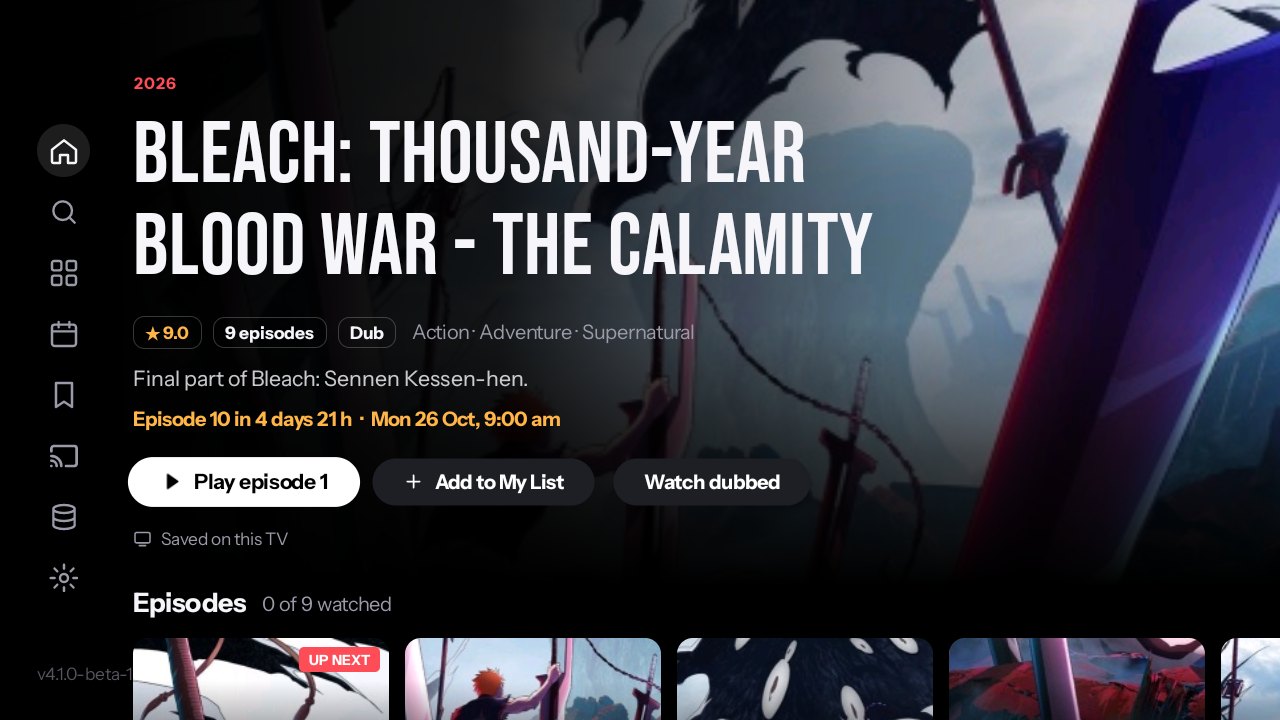
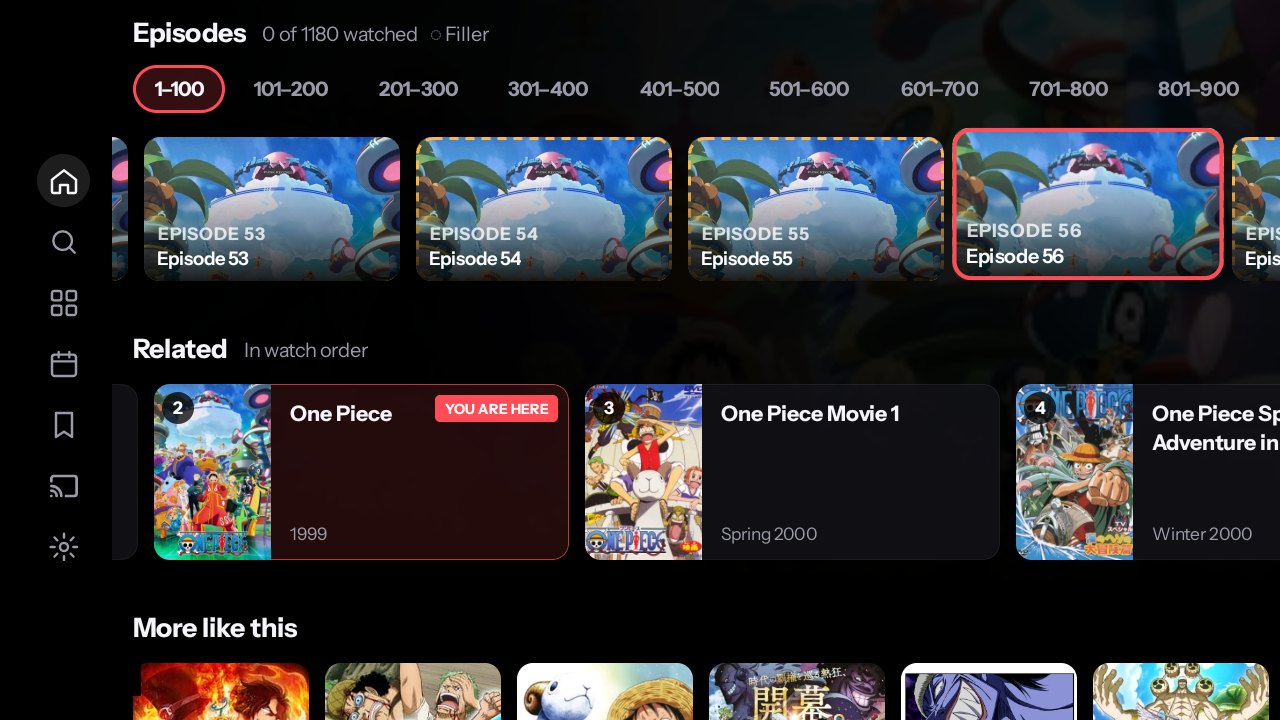
Skip what you want to
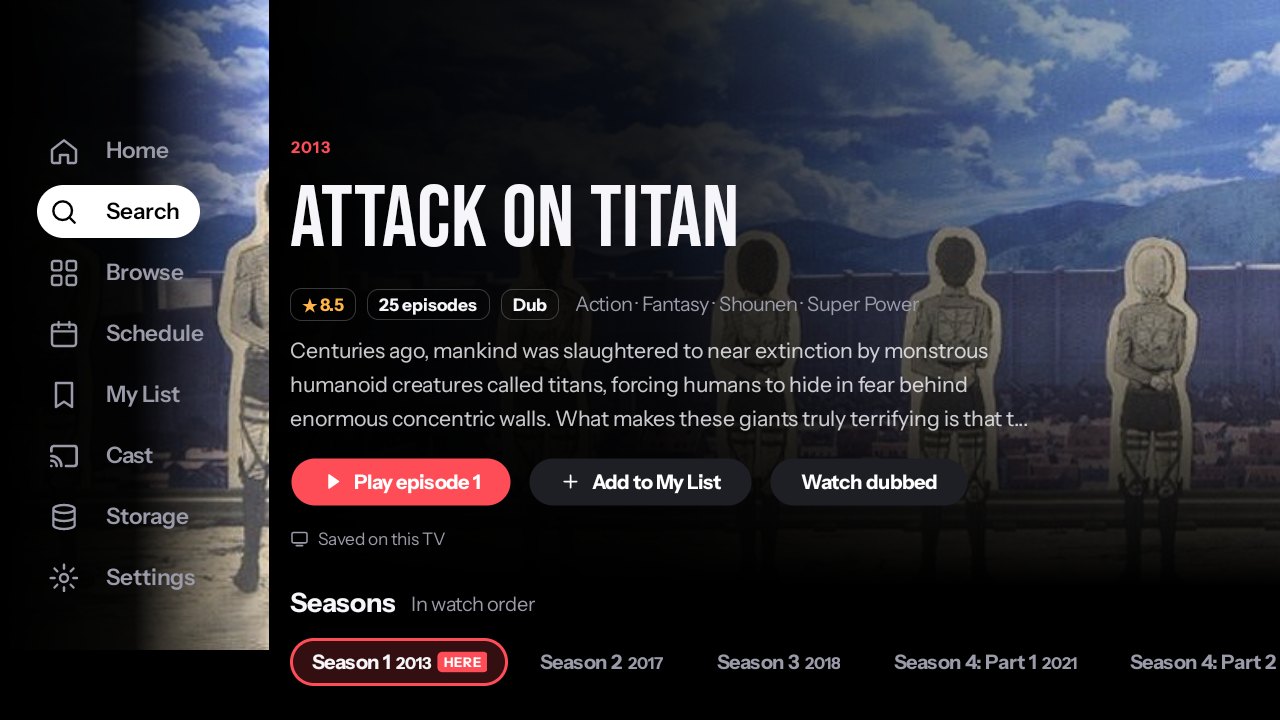
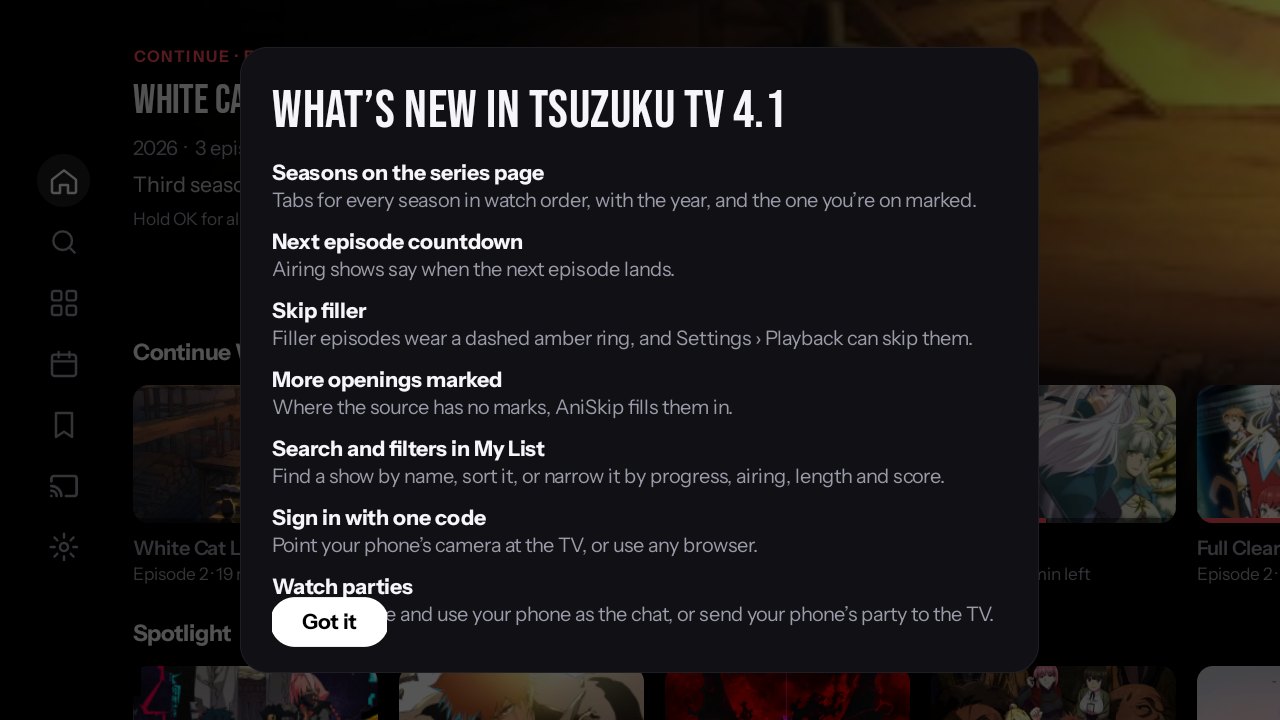
Filler episodes wear a dashed amber ring and say so. Turn on Skip filler and Next goes straight past them. Openings and endings are marked, and where the source has no marks, AniSkip fills them in.
Several servers behind every episode
If one stops playing, another takes over. Change the server, the quality or the subtitles from the panel under the picture without leaving the episode.
Watch together
Your TV plays. Your phone is the keyboard.
Start one on the TV
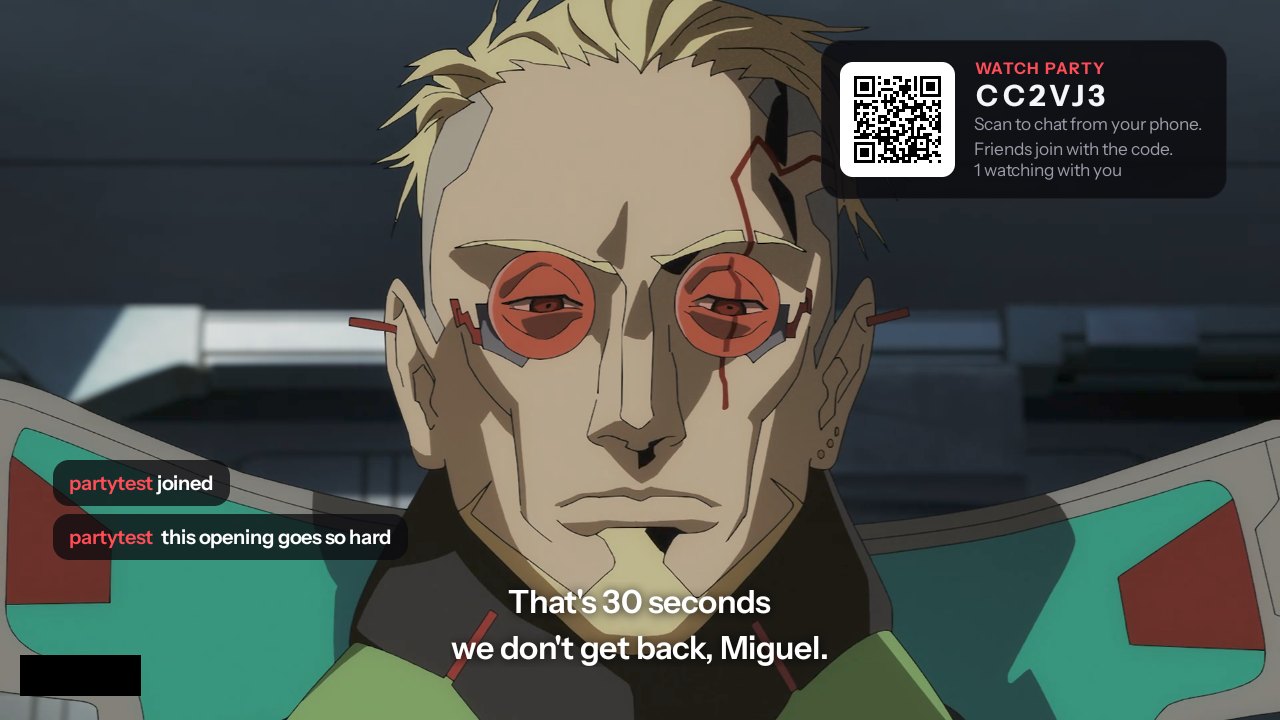
Press down while an episode plays and start a watch party. Scan its code with your phone and the phone becomes the chat. Friends join with the code from Tsuzuku on their own phones.
Or bring your phone’s party
Cast to the TV while you’re in a party and the TV plays along with everyone else. Messages appear over the picture for a few seconds and fade away.
Your list
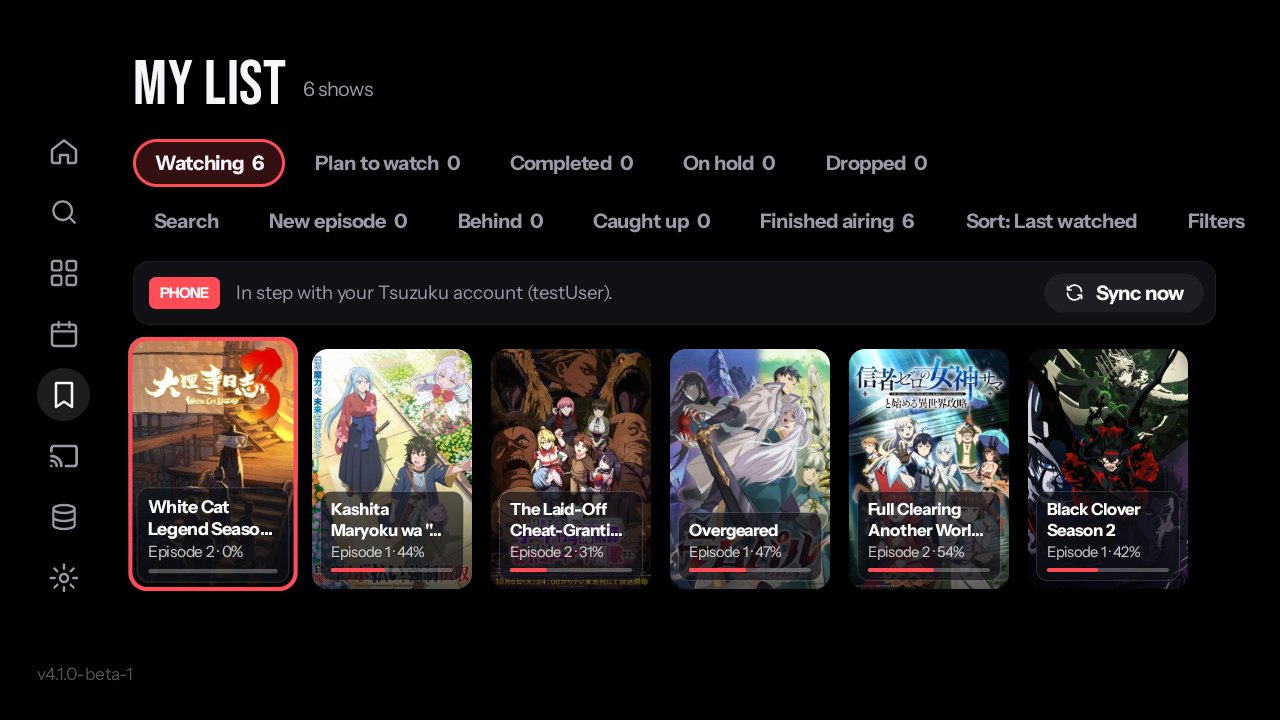
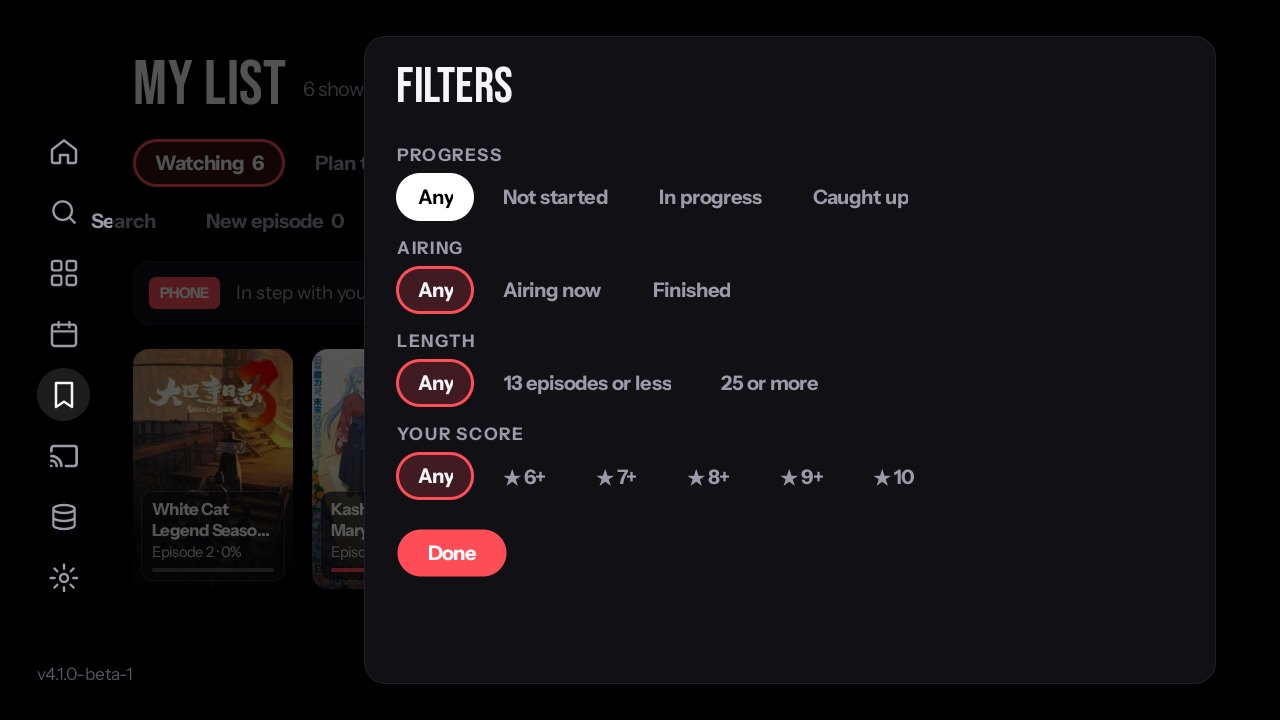
The same list on every screen.
Sign in your way
Scan the code on the TV with Tsuzuku on your phone, or point any phone’s camera at it and sign in with MyAnimeList or a Tsuzuku account in the browser. No phone app needed.
In step, live
Mark something Watching on your phone and it’s on the TV a moment later. Finish an episode on the TV and your phone, MyAnimeList or AniList hear about it. Everyone in the house can have their own profile.
Storage
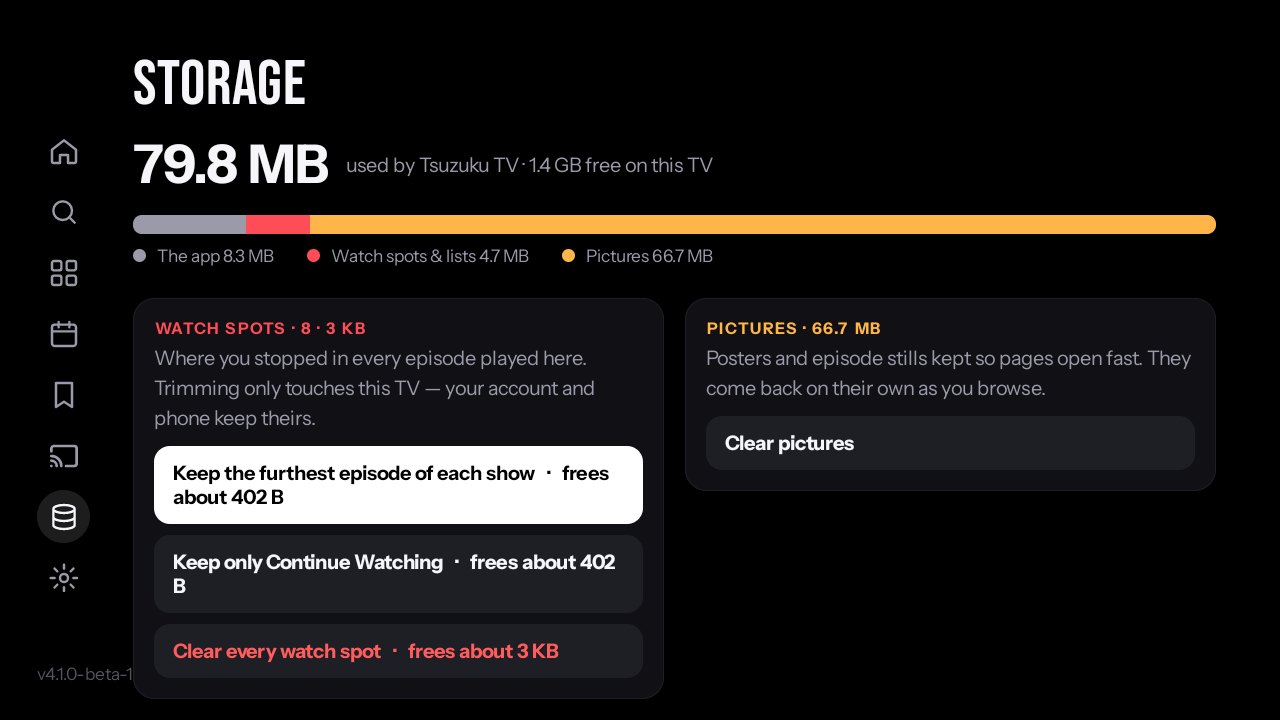
TV boxes are small. Tsuzuku TV knows it.
Keep only what you need
Every episode you play leaves a watch spot. Keep the furthest episode of each show, only what you’re in the middle of, or none. Trimming only touches the TV; your account keeps everything.
Updates tell you
When a new version is out, Tsuzuku TV says so and can download and install it itself, with nothing to type on the remote.
Get it
A beta: tell us what breaks.
Putting it on a TV
On the TV, install Downloader from the app store, open it and type nani-me-website.vercel.app/tv — that downloads the newest Tsuzuku TV. Android asks once whether Downloader may install apps; say yes. It installs over an earlier Tsuzuku TV and keeps your lists. Works on Android TV, Google TV and Fire TV, 32-bit boxes included.